A “you’re $12 away from free shipping” progress bar is one of the simplest ways to nudge shoppers toward a bigger order. But if your store uses the newer WooCommerce block cart, you’ve probably found that the snippets and older plugins that add one to the classic cart simply don’t show up. This guide explains why the block cart is different, how to tell which one your store uses, and how to add a free shipping bar that actually appears there and updates live as the cart changes.
Why a free shipping bar works
Free shipping is one of the most powerful levers in eCommerce, but a threshold only works if shoppers know about it and can see their progress toward it. A progress bar turns an abstract policy (“free shipping over $50”) into a concrete, personal goal (“add $12 more”). That framing matters: research into online buying behaviour consistently finds that unexpected shipping cost is a leading cause of cart abandonment, and that a visible, reachable free-shipping goal lifts average order value as shoppers add one more item to qualify. The bar does the quiet psychological work of turning a shipping fee from a cost into a game the shopper wants to win.
Classic cart vs block cart: why it matters
WooCommerce now ships two very different carts, and the one your theme uses changes everything about how you add a progress bar.
- The classic cart is rendered in PHP. You can hook into it server-side with actions like
woocommerce_before_cartand print whatever HTML you like. Most “add a free shipping notice” tutorials rely on exactly this. - The block cart is rendered in the browser with React, and it reads its totals from a live JavaScript data store (
wc/store/cart). PHP hooks that print into the classic cart never run there — which is why a snippet that works on one cart shows nothing on the other.
So to show a progress bar in the block cart, you can’t just echo HTML from PHP. You have to read that live store and update the bar in the browser whenever the cart changes. That’s a different, and more involved, job than a one-line snippet — and it’s the reason so many older free-shipping plugins silently do nothing on modern stores.
How to tell which cart your store uses
Open your Cart page in the editor. If you see a “Cart” block (with inner blocks like Cart Items and Cart Totals), you’re on the block cart. If the page contains a [woocommerce_cart] shortcode instead, you’re on the classic cart. Newer stores and most block themes default to the block cart, so it’s increasingly the one you need to support — and if you ever switch themes, you may move from one to the other without realising it.
Option 1: A basic notice on the classic cart (code)
If your store still uses the classic shortcode cart, a small snippet in your child theme’s functions.php gets you a simple message:
add_action( 'woocommerce_before_cart', function () {
    $threshold = 50; // your free-shipping amount
    $subtotal  = WC()->cart->get_subtotal();

    if ( $subtotal < $threshold ) {
        $remaining = $threshold - $subtotal;
        wc_print_notice(
            sprintf( 'Add %s more for free shipping!', wc_price( $remaining ) ),
            'notice'
        );
    }
} );
It’s a fine starting point, but note the limits: it only appears on the classic cart page — not the block cart, not the mini-cart, and not while the shopper is browsing product pages. It’s plain text with no progress bar, it won’t tell the shopper what to add, and it doesn’t update without a page reload. For the block cart, it does nothing at all.
Option 2: The DIY block-cart route (JavaScript)
To reach the block cart yourself, you’d subscribe to the cart data store and render a bar when totals change:
const { subscribe, select } = window.wp.data;

subscribe( function () {
    const cart = select( 'wc/store/cart' ).getCartData();
    const total = parseInt( cart.totals.total_items, 10 ) / 100;
    // ...compute remaining, then inject/update your bar markup...
} );
That’s the idea, but a robust version has to do a lot more: format the remaining amount in the store’s currency, inject the bar into the React-rendered cart without it being wiped on the next re-render, keep it in sync as items change, and also handle the classic cart and mini-cart so your store is covered whichever surface a shopper uses. You’ll also want it to switch to a success message once they qualify, and to load only where a cart exists. It’s a genuine mini-project to build, and one you then maintain as WooCommerce’s block cart evolves.
Option 3: A plugin that supports the block cart (no code)
For a bar that appears and updates in the block cart without the maintenance, use a plugin built for it. Free Shipping Bar & Upsells for WooCommerce reads the block cart’s live data store and repaints instantly as items change — and it also supports the classic cart and mini-cart, so you don’t have to think about which one your theme uses. Setup takes a couple of minutes:
- Install and activate the plugin alongside WooCommerce.
- Open Sproutient → Settings and set your free-shipping threshold.
- Turn on “Show in cart” (and “Show in mini-cart” if you like), then save.
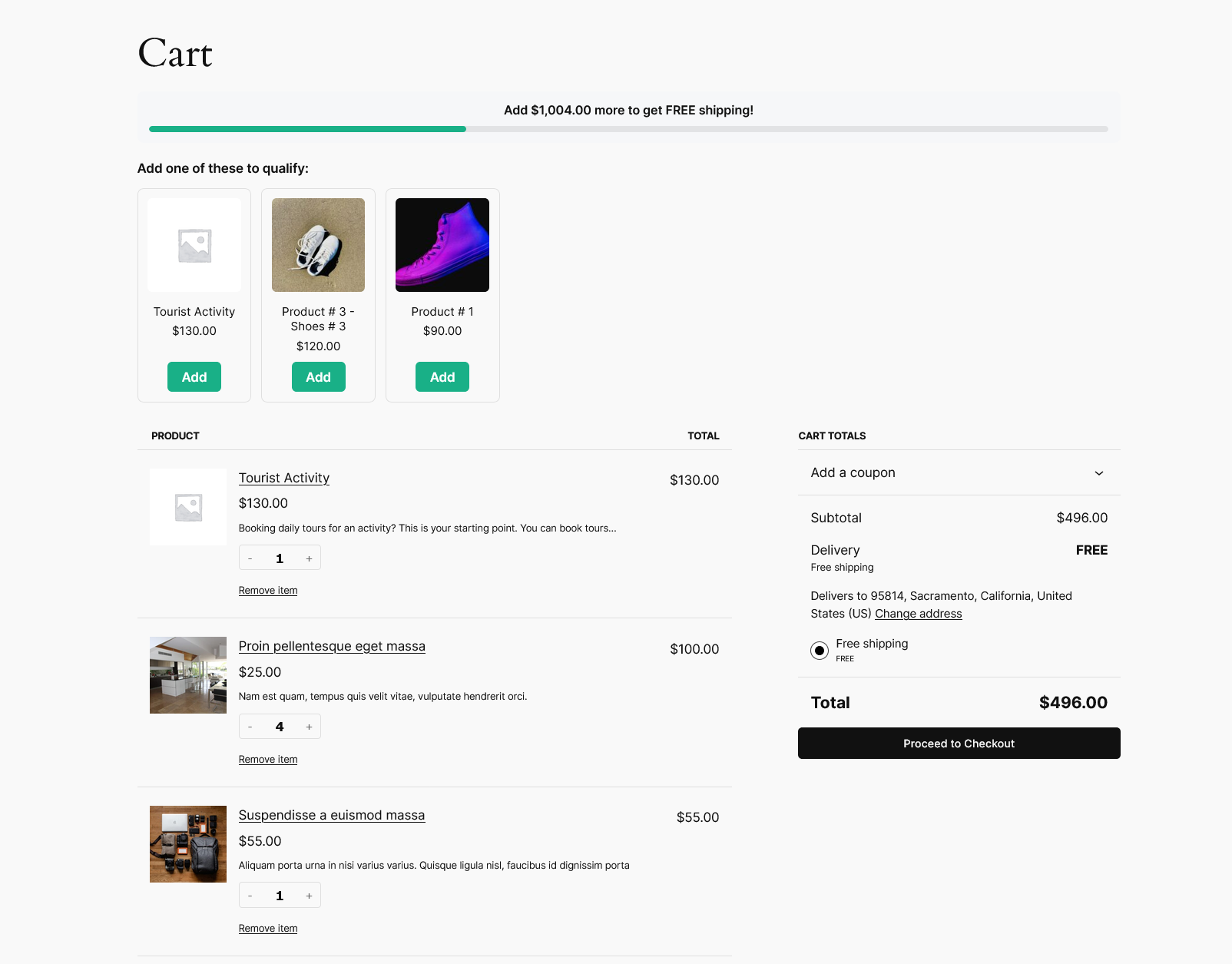
The bar then shows a live progress fill and a “$X away from free shipping” message in the block cart, switching to a success message once the shopper qualifies. You can customise the messages and colour, add a floating bar across the rest of your store, and even suggest products that close the gap.
Match the bar to your real shipping settings
Whichever route you take, the bar’s threshold is only a display target — it tells shoppers the number. To actually grant free shipping at that amount, set a matching minimum-order value on a Free Shipping method in WooCommerce → Settings → Shipping. Keep the two in sync so the bar never promises something checkout won’t deliver, and remember that if you calculate the threshold on the subtotal, tax and discounts can shift what the shopper sees versus what qualifies. Consistency here is what keeps the bar trustworthy.
Common mistakes to avoid
- Using a classic-cart snippet on a block-cart store. It’ll appear to do nothing — always confirm which cart you have first.
- A threshold nobody can reach. If it’s far above your average order value, the bar just reminds people how far away free shipping is. Aim for roughly 20–40% above your average order.
- No success state. When a shopper qualifies, the bar should celebrate it — dropping the message entirely feels like a bug.
- A mismatch with checkout. If the bar says “you qualify” but checkout charges shipping, you’ve broken trust at the worst moment.
Frequently asked questions
Why doesn’t my classic-cart snippet show in the block cart?
Because the block cart is rendered in JavaScript, not PHP. Server-side hooks like woocommerce_before_cart don’t run in it, so anything you print there simply isn’t part of the block cart’s output.
Will a block-cart bar also work in the mini-cart?
It should, if the plugin supports it. The mini-cart (cart drawer) is also block-based, so a plugin that reads the cart store can render the bar there too and keep it live.
Do I have to choose between block and classic support?
No. A good plugin covers both, which future-proofs you if you switch themes or WooCommerce changes its defaults.
Where should the bar appear for best results?
The cart and mini-cart are the essentials, since that’s where the shopper is deciding whether to keep adding. A sitewide floating bar on product and shop pages extends the nudge earlier in the journey, where basket size is still being decided.
The bottom line
If you only use the classic cart and want a plain text notice, the snippet is enough. If your store uses the block cart — the default in newer WooCommerce and most block themes — or you want an actual live progress bar with mini-cart and product-page support, a purpose-built plugin will save you a lot of custom JavaScript and keep working as WooCommerce evolves.