A free-shipping progress bar is one of the simplest ways to lift average order value — it turns your shipping threshold into a visible goal shoppers want to reach. But the plugins that offer one vary widely, and the differences aren’t obvious from a feature list. This guide covers the criteria that actually matter, the red flags to walk away from, and how to test a plugin before you commit, so you end up with a bar that lifts orders rather than one that quietly does nothing on your cart.
Why the choice matters
A free-shipping bar touches your funnel at several points — product pages, the cart, the mini-cart — and its job is to change order size at the moment of decision. A bar that’s invisible on your cart type, stale after an add-to-cart, or heavy on every page does the opposite of what you bought it for. Worse, some of these failures are silent: the bar looks fine in the plugin’s demo but never appears on your particular theme or cart. So look past the screenshot and check how it behaves on your store, with your cart and your traffic.
1. Does it support the block cart, not just the classic cart?
WooCommerce now ships a block-based cart and checkout, and many themes use them by default. A lot of older free-shipping-bar plugins were built for the classic shortcode cart and either don’t appear in the block cart or need workarounds. Before you buy, confirm the bar renders and updates live in the block cart and mini-cart — otherwise a growing share of your shoppers will never see it, and you won’t necessarily notice, because it’ll still work in the demo.
2. Does it just show a message, or drive the upsell?
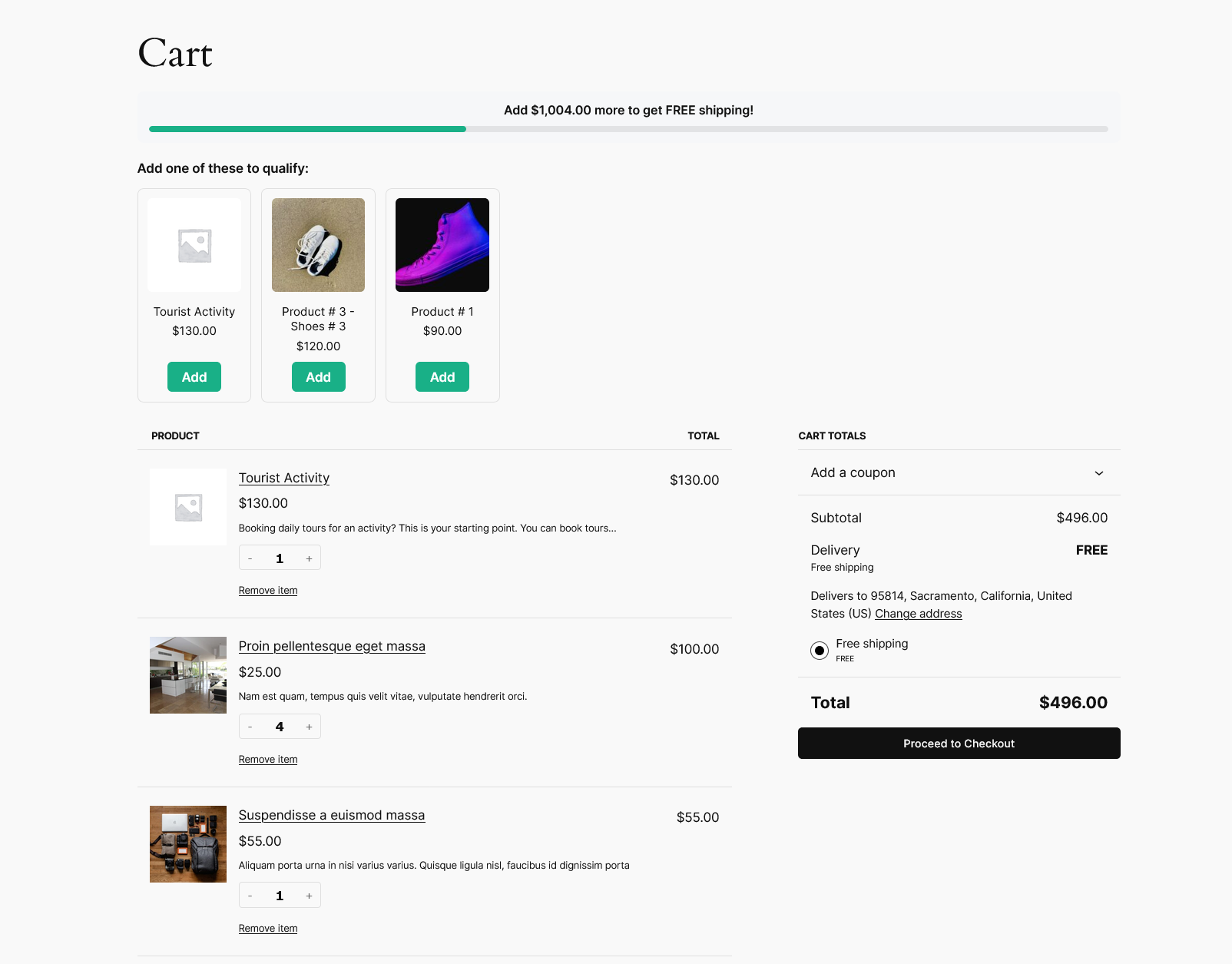
“You’re $12 away from free shipping” is a good nudge — but the shopper still has to figure out what to add. The most effective tools go one step further and suggest specific products from your catalogue that would close the gap, with a one-click add. Look for automatic suggestions (no manual product-picking) that adapt as the cart changes, including the case where it takes more than one product to reach the threshold. This is often the single biggest difference between a bar that reminds and one that actively lifts order value.
3. Can you control where it appears?
The cart page is the obvious spot, but shoppers decide what to add much earlier. A sitewide floating bar keeps the goal visible while they browse. The best implementations let you choose which page types show it — home, shop, product, category — rather than forcing all-or-nothing, so you can be present without being pushy or cluttering pages where it doesn’t belong.
4. Does it update live, without a reload?
The bar’s whole value is the live number. If it only recalculates on page load, a shopper who adds an item sees a stale “you’re $12 away” until they navigate — and the moment is lost. A good bar reads the live cart and repaints instantly on every change, on both the cart page and the mini-cart drawer.
5. Is it lightweight and theme-friendly?
A progress bar shouldn’t require a page builder, load a heavy framework, or fight your theme. Prefer one that inherits your styling, ships minimal CSS/JS, and loads nothing on pages where it isn’t shown. If you run a sitewide floating bar, that efficiency matters even more, since it’s potentially on every page a shopper visits.
6. Does it match your real shipping rules?
The bar shows a threshold; your Free Shipping method enforces one. Make sure you can set the bar’s target to match your WooCommerce shipping settings (and, ideally, handle tax and discounts the same way checkout does) so the bar never promises something the cart won’t deliver. A bar that says “you qualify” while checkout still charges shipping is worse than no bar at all.
7. Does it coexist with your other plugins?
If you run other conversion tools — a sticky add-to-cart bar, cookie notices, chat widgets — check that the free-shipping bar doesn’t collide with them, especially fixed elements competing for the same screen edge. Well-built plugins position themselves to stack rather than overlap.
8. Are updates and support included?
WooCommerce and its block cart evolve quickly. Choose a plugin that’s actively maintained, with updates and support in the price and a refund window so you can try it risk-free.
Red flags to walk away from
- No mention of the block cart. If the listing only talks about the classic cart, assume it won’t show on a modern store.
- Static-only display. If it can’t update after an add-to-cart, the number goes stale exactly when it matters.
- Requires a specific page builder. A bar shouldn’t lock you into a builder to place it.
- Loads sitewide with no controls. No way to limit where it appears means clutter and needless page weight.
How to test one before you buy
- Add an item and confirm the bar’s remaining amount updates immediately, with no reload — on both your cart page and mini-cart.
- Cross the threshold and check the message switches to the success state.
- Check the floating bar on a product page and confirm it only shows where you want it.
- If it suggests products, verify they actually close the gap and can be added in one click.
- Run a quick performance check before and after on a product page.
How Free Shipping Bar & Upsells measures up
- Block & classic cart — renders and live-updates in both, reading the block cart’s data store.
- Automatic product upsells — suggests the cheapest single product that closes the gap, or a combination when the gap is larger.
- Sitewide floating bar — top or bottom, everywhere or only on the page types you choose.
- Lightweight — no page builder, inherits your theme, loads nothing when inactive, and stacks cleanly with other fixed bars.
- $149/year with updates, support, and a 30-day money-back guarantee.
Frequently asked questions
Do I need a plugin, or can I do this with code?
You can add a basic notice to the classic cart with a snippet, but reaching the block cart and mini-cart, updating live, adding a floating bar, and suggesting products all take real JavaScript to build and maintain. For most stores a plugin is the practical choice.
What’s the most common gap in these plugins?
No live update in the block cart. Many were built for the classic cart and either don’t show there or show a stale number. Test that first.
Will a free-shipping bar slow my store down?
Not if it’s built well — loading only where needed and reading the cart efficiently keeps the overhead small. A bar that loads heavy assets sitewide is the thing to avoid.
How do I choose the threshold?
Set it above your average order value — a common range is 20–40% higher — so it lifts baskets while still feeling reachable, and make sure your margins cover the shipping you absorb.