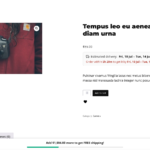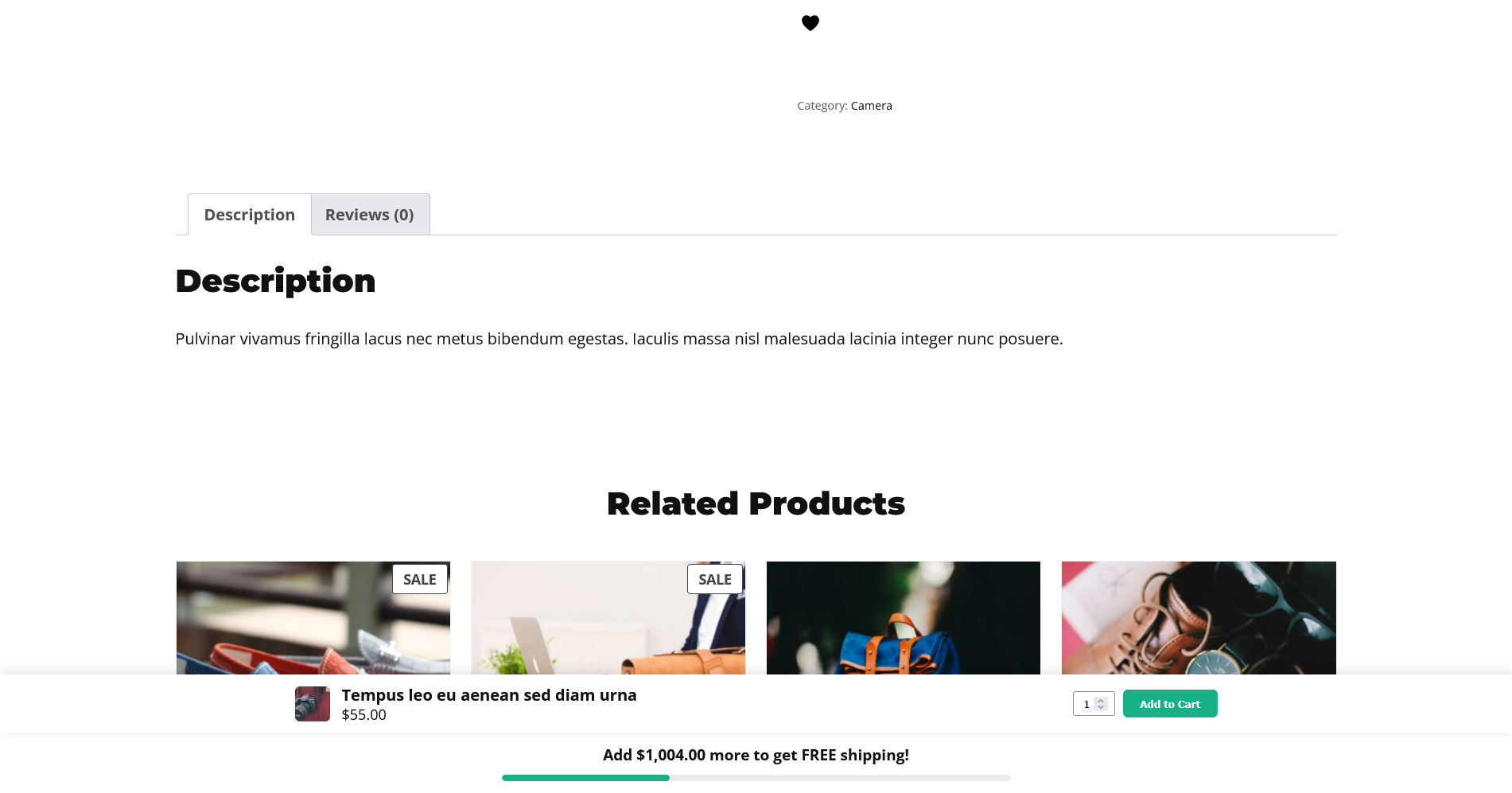
A sticky Add to Cart bar is one of the cheapest ways to lift conversions on product pages — it keeps the buy button in reach while shoppers scroll. But the plugins that offer one range from excellent to actively harmful, and the differences aren’t obvious from a features list. This guide walks through the criteria that actually matter, how to test a plugin before you commit, and the common pitfalls that quietly break sales.
Why it’s worth getting right
The sticky bar sits at the most sensitive point in your funnel: the moment someone decides to buy. If it works, it removes friction. If it’s buggy — adds the wrong variation, shows a stale price, blocks the real button, or janks on mobile — it does damage exactly where you can least afford it. So “does it look nice in the demo” is the wrong question. “Does it behave correctly on my hardest products” is the right one.
The nine criteria that matter
1. Does it reuse WooCommerce’s real Add to Cart button?
This is the single most important question. A sticky bar should drive WooCommerce’s own Add to Cart button, not reimplement add-to-cart itself. Plugins that roll their own logic tend to break on variable products, skip stock validation, ignore add-to-cart hooks other plugins rely on, or bypass AJAX add-to-cart. When the bar reuses the native button, everything that already works on your product page keeps working — including other extensions.
2. Is it variation-aware?
For variable products the bar must update the price — and ideally the image — as the shopper selects options, and it must not allow an add-to-cart before a required variation is chosen. A bar stuck showing a “from” price or the default image erodes trust at the worst possible moment.
3. Is it genuinely mobile-first?
Mobile is where a scroll-away button costs the most, so the bar has to be compact and comfortable on small screens: a readable price, a tappable button sized for thumbs, and no layout shift when it appears. Check that it respects safe areas on notched phones and doesn’t cover important controls.
4. Is it lightweight?
A progress bar shouldn’t require a page builder or drag a heavy framework onto every page. Prefer one that loads only on product pages, ships minimal CSS/JS, and reveals itself efficiently (the browser’s IntersectionObserver rather than a constant scroll listener). Your Core Web Vitals will thank you.
5. Does it handle out-of-stock and non-purchasable products?
The bar should simply not appear for products that can’t be bought. Showing an Add to Cart button that then fails is worse than showing nothing.
6. How much control do you get?
Look for a clear position choice (top or bottom) and simple toggles for what appears in the bar — image, price, quantity. You want enough control to fit your store without a maze of options you’ll never touch.
7. Does it play nicely with your theme?
The bar should inherit your styling so it looks native, and coexist with any sticky header, mobile nav, or cookie banner you already run. A good one lets you flip its position to avoid collisions.
8. Is it accessible?
The button should be a real, focusable button with a sensible label, and the quantity field should be usable with a keyboard. Accessibility is easy to overlook in a small UI element and easy to get wrong.
9. Are updates and support included?
WooCommerce moves quickly. Make sure the plugin is actively maintained, that updates and support are part of the price, and that there’s a refund window so you can try it on your store risk-free.
How to test one before you buy
Don’t judge a sticky bar from the sales page. Put it through its paces on a staging copy of your store:
- Open a variable product and confirm the bar’s price and image change as you switch variations, and that it won’t add to cart until you pick one.
- Add from the bar and check the correct item and quantity land in the cart, with any AJAX mini-cart updating as usual.
- Test on a real phone — scroll, tap, and make sure nothing overlaps your header or footer.
- Check an out-of-stock product to confirm the bar stays hidden.
- Run a quick performance check (Lighthouse or your CWV tool) on a product page before and after.
How Sticky Add to Cart Bar measures up
- Reuses Woo’s real button — variations, validation, and AJAX add-to-cart all keep working, alongside your other extensions.
- Variation-aware — mirrors the selected variation’s price and image.
- Mobile-first — a compact bar designed for phones, with a top or bottom position.
- Lightweight — loads only on product pages, reveals via IntersectionObserver, inherits your theme.
- Handles the edges — stays hidden for out-of-stock and non-purchasable products.
- Simple & supported — position plus image/price/quantity toggles, updates and support included, 30-day money-back guarantee.
Frequently asked questions
Do I really need a plugin, or can my theme do it?
Some themes include a basic sticky bar. If yours does and it handles variable products correctly on mobile, you may not need a plugin. Most theme implementations are simple and skip variation handling — test yours against the criteria above.
Will a sticky bar hurt my SEO or page speed?
Not if it’s built well. Loading only on product pages and using IntersectionObserver keeps the overhead tiny. A bloated bar that loads sitewide is the thing to avoid.
What’s the single biggest pitfall?
A bar that reimplements add-to-cart instead of driving WooCommerce’s real button. That’s the root cause of most “it added the wrong variation” and “it broke with my other plugin” complaints.