A free-shipping progress bar tells a shopper they’re “$12 away.” That’s a good nudge — but it leaves them to work out what to add. Close that gap for them by suggesting real products that reach the threshold, and you turn a passive reminder into an active upsell. This guide covers why it works, how to pick the right products automatically, how to set it up in WooCommerce, and how to choose a threshold that actually lifts orders without giving away margin.
Why suggesting products works
Unexpected shipping cost is one of the most common reasons shoppers abandon a cart. When someone is a little short of your free-shipping threshold, they’re in a decision-making moment: adding one more item feels like a win (free shipping) rather than a cost. The easier you make that choice — by showing a couple of relevant products they can add in one click — the more often they take it. The result is a higher average order value and fewer abandoned carts, from shoppers who were already most of the way to buying.
It also reframes the shipping fee entirely. Instead of “pay $6 to ship,” the shopper sees “add a $12 item and get $6 shipping free” — which often feels like better value, especially if the suggested product is something they’d have considered anyway. You’re not asking them to spend more for nothing; you’re offering a way to spend a little more and get something tangible plus free delivery. That reframing is the psychological engine behind threshold upsells.
The hard part: picking the right products automatically
You could manually curate a list of “add-on” products, but that’s brittle: it ignores the size of each shopper’s gap, keeps suggesting items already in the cart, and goes stale as your catalogue changes. A good automatic approach adapts to the exact remaining amount:
- When a single product can close the gap, suggest the cheapest one that does — the shopper qualifies with one add and minimal over-spend.
- When the gap is larger than any single product, suggest a small combination that together crosses the threshold.
- Always exclude products already in the cart, and out-of-stock items.
Getting this logic right by hand is fiddly, and it has to re-run every time the cart changes. A static “you may also like” block can’t do it, because it doesn’t know each shopper’s remaining amount. That dynamic, gap-aware selection is the main reason to reach for a plugin rather than a manual list.
Setting it up with a plugin
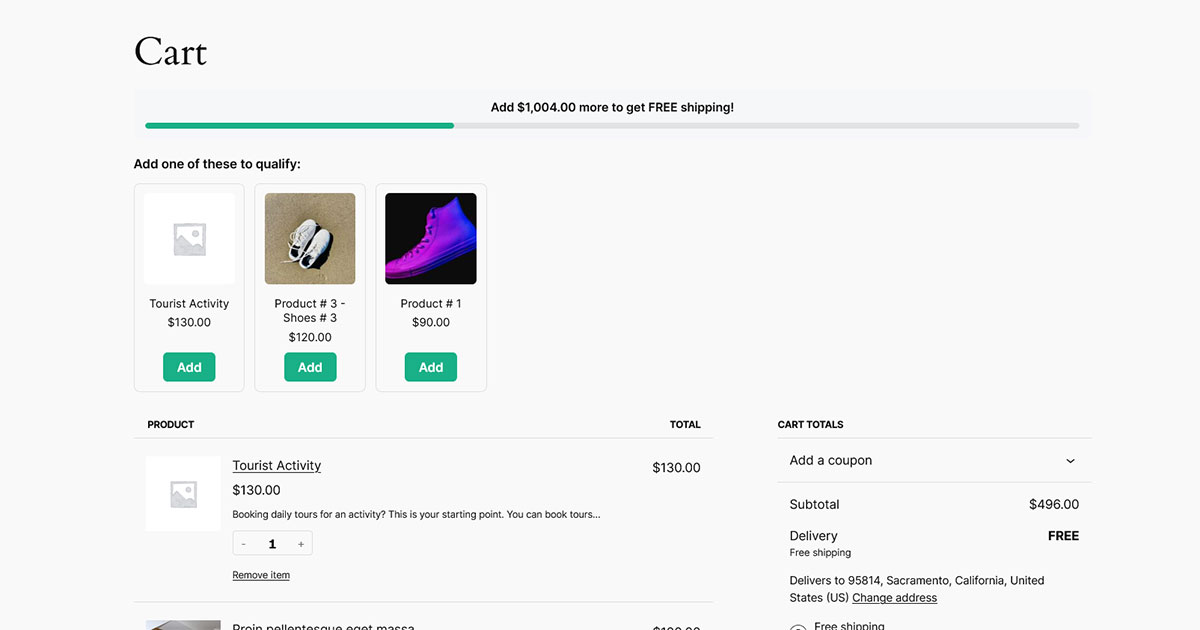
Free Shipping Bar & Upsells for WooCommerce handles this automatically. Below the progress bar on the cart page, it shows suggested products chosen with exactly the logic above — each with a one-click Add button that updates the cart and the bar instantly.
- In Sproutient → Settings, set your free-shipping threshold.
- Under Threshold upsells, turn on “Suggest products to reach free shipping.”
- Choose how many to show (1–6) and edit the heading, then save.
Because the suggestions recalculate whenever the cart changes, a shopper who adds one item immediately sees a fresh set aimed at their new, smaller gap — or the success message if they’ve now qualified.
Getting your threshold right
The threshold does a lot of quiet work here. Set it too low and you give away shipping you’d have gotten anyway; set it too high and shoppers give up. A common sweet spot is roughly 20–40% above your average order value — high enough to lift baskets, low enough that reaching it feels achievable. It’s worth calculating your real average order value first, then setting the threshold from there rather than picking a round number.
There’s also a catalogue consideration: if your threshold is far higher than your most expensive product, a nearly-empty cart can have a gap bigger than anything you sell, and there won’t be a sensible single product to suggest. Keep the threshold realistic for your price range so the suggestions always make sense, and remember to factor in your shipping cost and margins — free shipping only helps if the extra order value covers what you’re absorbing.
Common mistakes to avoid
- Suggesting expensive items for a small gap. If a shopper is $5 short, don’t lead with a $60 product — the cheapest qualifying item converts best.
- Recommending out-of-stock or already-in-cart products. Both erode trust; good selection excludes them automatically.
- A threshold above your catalogue’s reach. If nothing can close the gap, the upsell simply has nothing to show.
- Making the add a multi-step task. A one-click add keeps the momentum; sending shoppers to a product page to configure options loses them.
Frequently asked questions
How are the suggested products chosen?
Automatically, from your catalogue. If a single in-stock product can close the gap, the cheapest one is shown; if the gap is larger than any single product, a small combination that together crosses the threshold is shown. Items already in the cart are excluded.
Can shoppers add a suggestion in one click?
Yes. Each suggestion has an Add button that adds the product and updates the cart and the progress bar right away, on both the classic and block cart.
What if no products fit the gap?
If the remaining amount is larger than anything you sell, there’s nothing sensible to suggest, so nothing is shown. Lowering the threshold to a realistic level for your catalogue fixes this.
Does free shipping actually pay off?
It does when the threshold lifts order value by more than the shipping you absorb. Set it above your average order value and monitor the effect — the upsell suggestions are what make the higher basket happen.
The takeaway
A progress bar creates the intent; product suggestions convert it. Together they catch shoppers who were already close to your threshold and make finishing the job effortless — which is about the most reliable average-order-value lift you can add to a WooCommerce store, provided your threshold is set with your margins in mind.