
Keep “Add to Cart” in view — and stop losing scroll-away sales
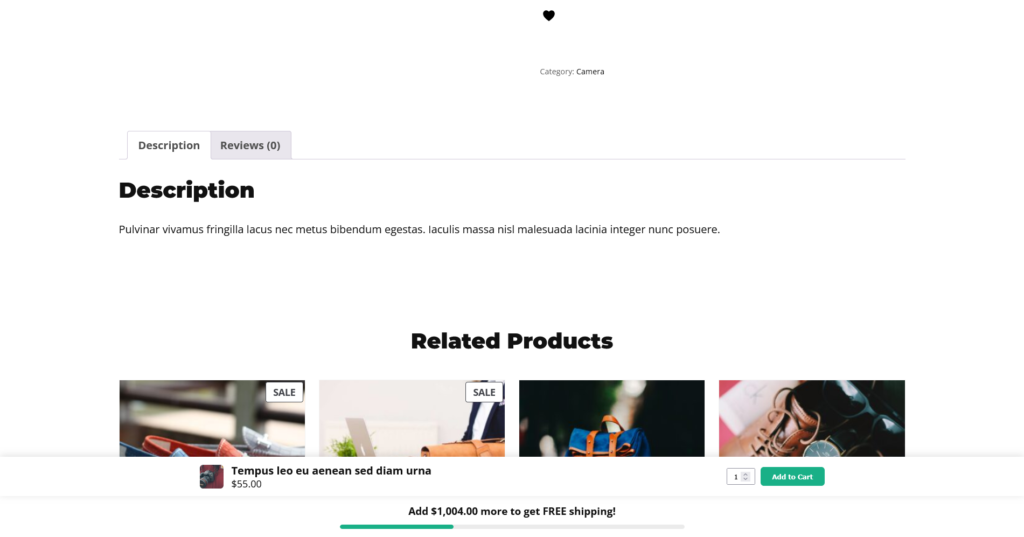
On long product pages and mobile, the Add to Cart button scrolls out of sight. This adds a slim sticky bar — image, price, quantity, and a live Add to Cart button — that follows shoppers the whole way down.
Works with any WooCommerce theme · Block & classic · Mobile-first · 30-day guarantee
A hidden button is a missed sale
Shoppers scroll through gallery, description, specs, and reviews before they decide — and by then the Add to Cart button is far out of reach, especially on a phone. Every extra scroll back up is a chance to lose them. A sticky bar keeps the decision one tap away, wherever they are on the page.
Built to convert, easy to run
Follows the scroll
The bar slides in the moment the real Add to Cart button leaves the screen, and tucks away when it’s back in view.
Variation-aware
For variable products the bar mirrors the selected variation’s price and image, so it always shows what they’re actually buying.
Uses Woo’s own button
It drives WooCommerce’s real Add to Cart button, so variations, validation, and AJAX add-to-cart keep working exactly as they should.
Image, price & quantity
Show a product thumbnail, the price, and a quantity selector — each one toggleable to suit your product pages.
Top or bottom
Pin the bar to the bottom (great on mobile) or the top of the screen — your choice.
Light & theme-friendly
No page builder, no jQuery bloat. It inherits your theme’s look and only loads on product pages.
Where it earns its keep
- Mobile-heavy stores — most WooCommerce traffic is mobile, where the button scrolls away fastest.
- Long product pages — rich galleries, descriptions, specs, and reviews push the button far down.
- Variable products — the bar keeps the selected variation’s price and image in front of the shopper.
- Considered purchases — when people read before buying, the bar catches them at the moment they decide.
Live in three steps
1
Install & activate
Add the plugin alongside WooCommerce.
2
Pick position & fields
Bottom or top; toggle image, price, quantity.
3
Done
The bar appears on your product pages automatically.
What to look for in a sticky add-to-cart plugin
Not all sticky bars are built the same. Here’s what matters — and how this one measures up.
- Reuses WooCommerce’s real button — so variations, stock validation, and AJAX add-to-cart never break. Bars that reimplement add-to-cart tend to fail on variable products.
- Variation-aware price & image — updates as the shopper picks options.
- Lightweight — loads only on product pages, inherits your theme, no page builder.
- Simple to set up — a handful of clear options, not a maze of settings.
Simple pricing
$149 /year
One year of updates & support. 30-day money-back guarantee.
Frequently asked questions
Does it work with variable products?
Yes. The bar drives WooCommerce’s own Add to Cart button, so variation selection and validation work normally, and the bar mirrors the selected variation’s price and image.
Will it work with my theme?
It’s built to work with any standard WooCommerce theme and inherits your styling. It reveals based on your product page’s real Add to Cart button.
Is it mobile-friendly?
Yes — the sticky bar is designed mobile-first, which is exactly where a scroll-away Add to Cart button costs the most sales.
Will it slow my site down?
No. It loads only on single product pages, ships minimal CSS/JS, and reveals efficiently using the browser’s IntersectionObserver.
Catch every ready-to-buy shopper
Add the sticky bar in minutes and keep Add to Cart one tap away.
Setup & settings
Everything’s on one screen. Here’s what each option does.
Getting started
- Install and activate the plugin alongside WooCommerce.
- Open Sproutient → Settings.
- Choose the position and which fields to show, then save. The bar appears on your product pages automatically.
Settings reference
- Position — pin the bar to the bottom or top of the screen.
- Show product image — a thumbnail in the bar.
- Show price — the product price (variation-aware).
- Show quantity selector — let shoppers set a quantity from the bar.
Requirements
- WordPress 6.6+ · WooCommerce (active) · PHP 8.1+
Troubleshooting
The bar isn’t appearing
Confirm WooCommerce is active and you’re viewing a single product page whose product is in stock and purchasable. The bar reveals once the page’s main Add to Cart button scrolls out of view — so scroll down past it. If you use a caching plugin, clear the cache after changing settings.
It overlaps my theme’s own sticky element
Switch the bar’s position from bottom to top (or vice-versa) so it doesn’t collide with a fixed header or footer bar in your theme.